Home/ Widgets

Your days
together,
in a widget.

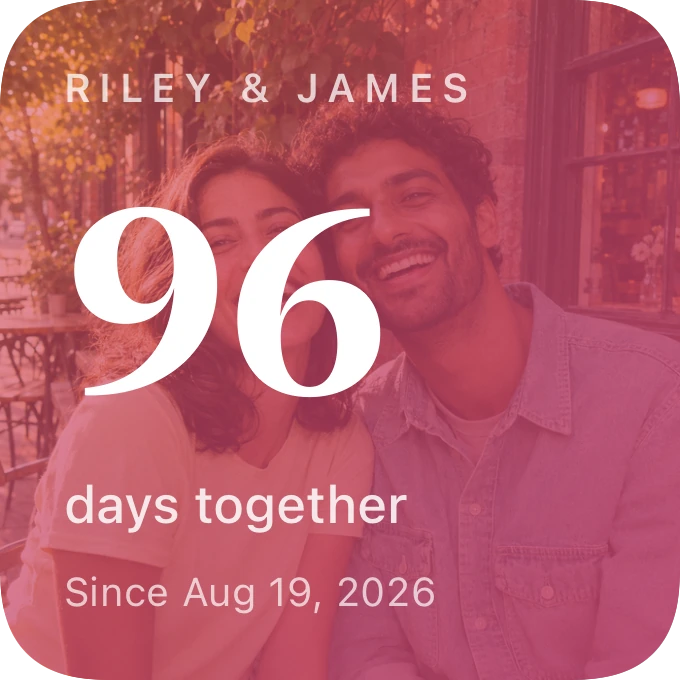
The Days Together widget from Since We Met counts from your first date or any date you choose. Keep the counter on your iPhone or Android Home Screen with a photo of the two of you.

Already have the app? Add your widget
iPhone lock screen preview
Days Together widget

Choose your couples widget

Start with Days Together for a free relationship counter on Android or in the small iPhone Home Screen size. Use it on your own, or invite your partner to share your story.
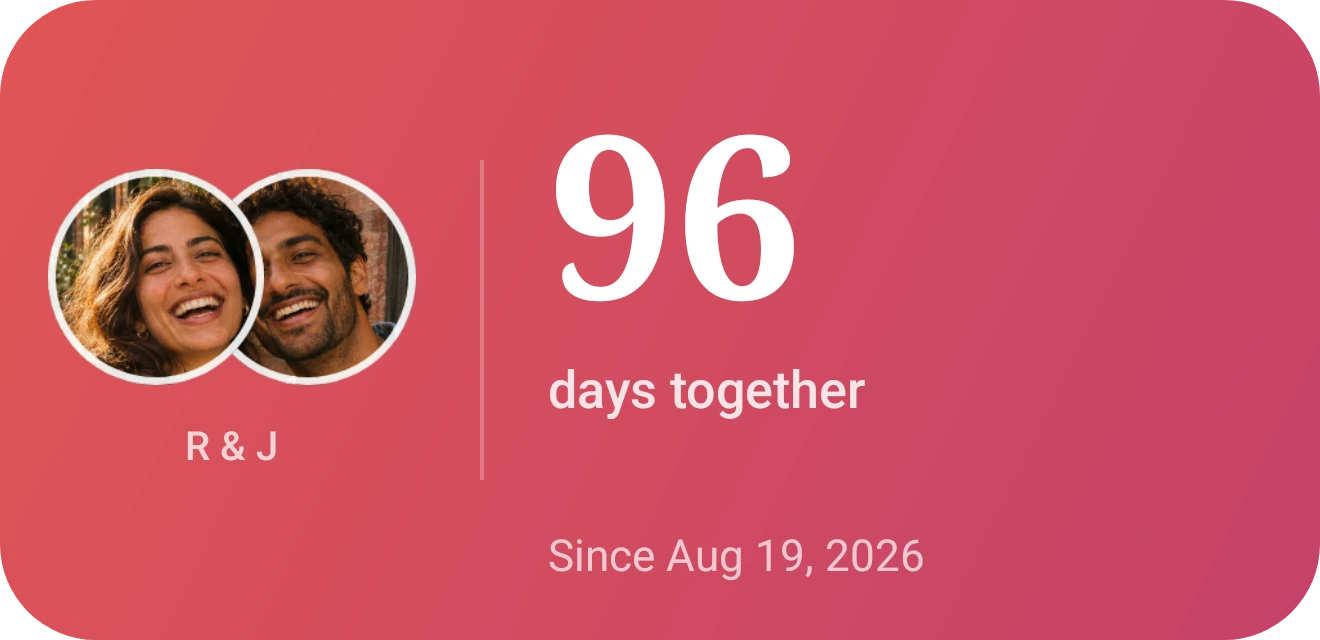
You & Them widget preview

You & Them

See both your faces beside your day count. Available with Plus on iPhone and Android.
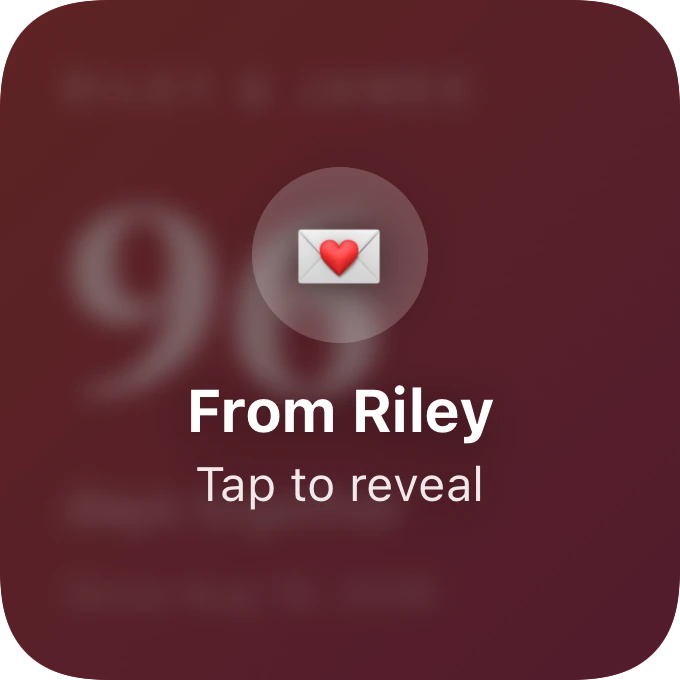
A Pulse from your partner widget preview

A Pulse from your partner

When your partner sends a Pulse, your Days Together widget can show their name and a sealed message. Tap it to open the surprise.
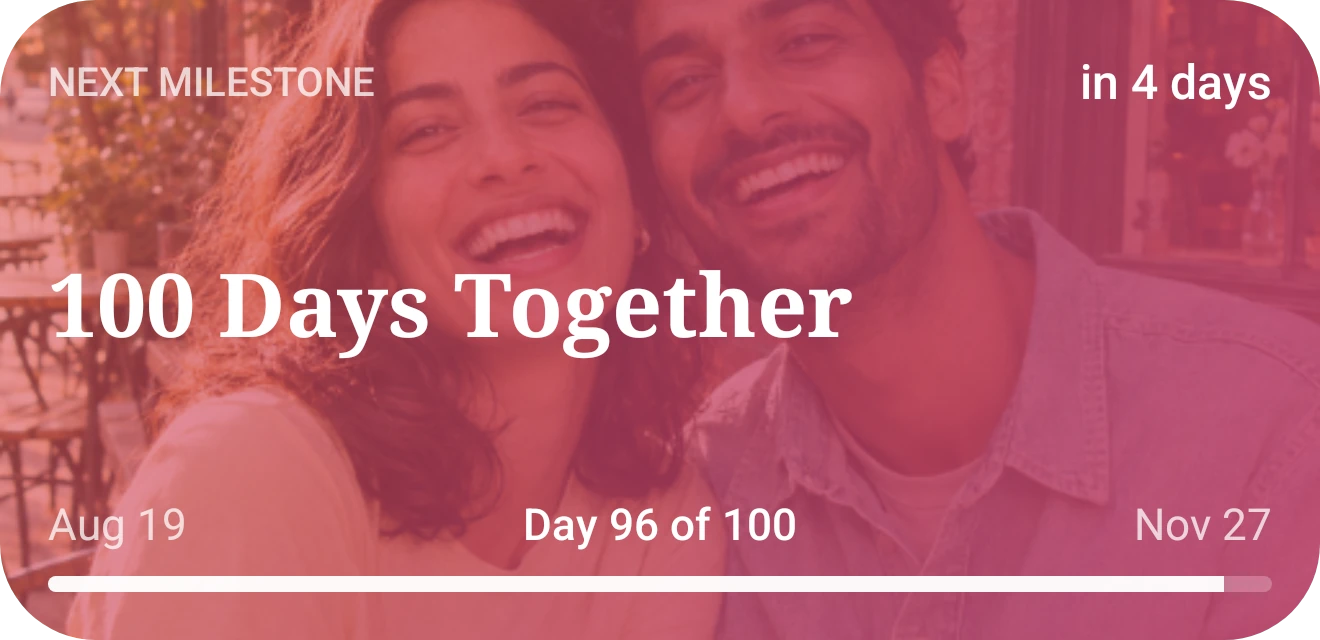
Next Milestone widget preview

Next Milestone

Count down to your next anniversary or milestone. Available with Plus on iPhone and Android.

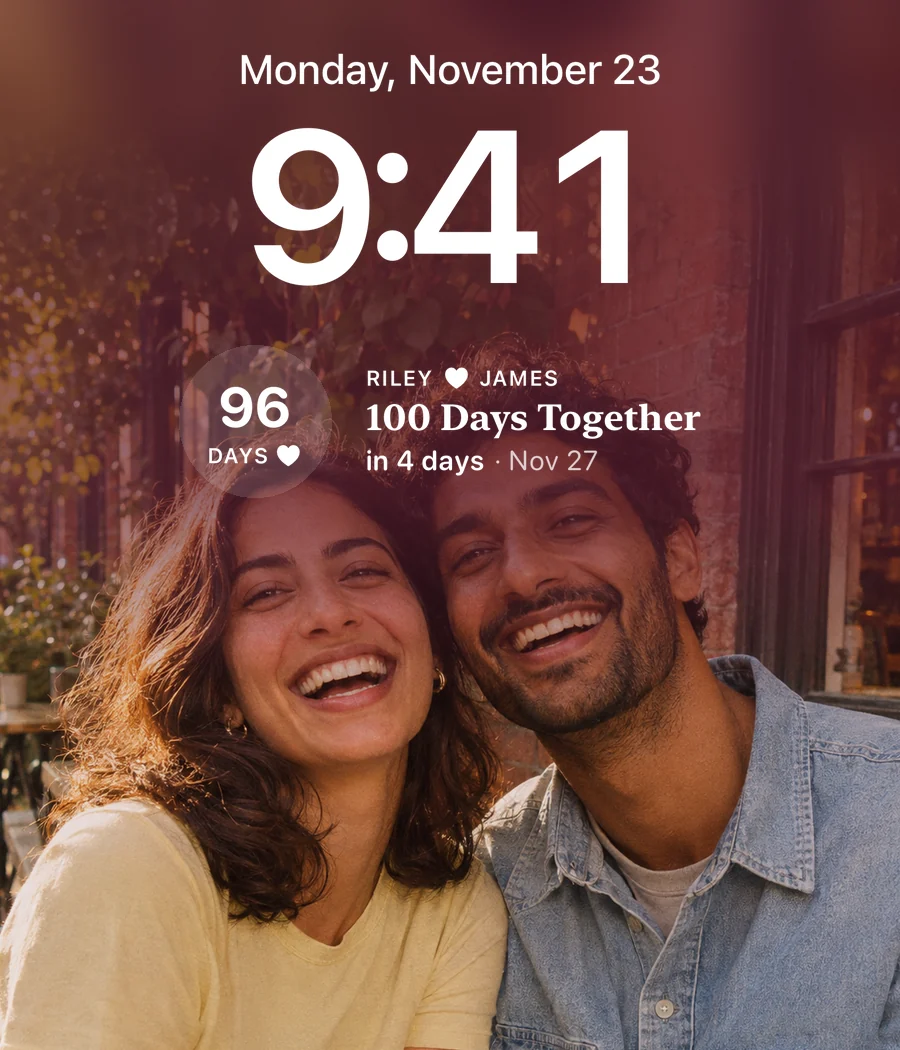
Riley and James’s iPhone Lock Screen shows 96 days together and four days until their 100-day milestone.

iPhone Lock Screen preview

Count the days on your iPhone Lock Screen

Your counter can sit right below the clock. The circular Days Together widget is free. For more detail, choose one of three rectangular widgets with Plus.

Together Since Your names, time together and start date.
Next Milestone What's coming up and how many days are left.
Time Since How long it's been since a memory, like your first trip.
Add a Lock Screen widget

How to add your widget

First, open Since We Met and set your relationship start date. Add a couple photo in the app if you'd like it behind your Home Screen counter.

iPhone Home Screen

1. Press and hold a blank spot on your Home Screen until the icons move.
2. Tap Edit, then Add Widget. If you see a + button in the corner, tap it instead.
3. Search for Since We Met. Swipe to Days Together and select the small size for the free counter.
4. Tap Add Widget, position it and tap Done.
To customize it, hold the widget and tap Edit Widget. Under Counter, choose Total days for a single number. Switch Show Couple Photo on or off.

iPhone Lock Screen

1. Press and hold your Lock Screen. Unlock your iPhone if prompted.
2. Tap Customize and choose Lock Screen if asked.
3. Tap the widget area below the clock. Find Since We Met and tap or drag the widget you want into the row.
4. Close the widget picker and tap Done. If the row is full, remove a widget to make space.
To put a couple photo behind these widgets, choose the photo as your iPhone Lock Screen wallpaper. iOS supplies the widget tint.

Android Home Screen

1. In Since We Met, open Settings and find Widgets.
2. If Add appears beside Days Together, tap it and confirm placement when your phone asks.
3. For manual placement, hold a blank spot on your phone's Home Screen, tap Widgets and open Since We Met. Hold Days Together and drag it into place, or tap Add if your launcher offers it.
If Widget style opens, choose your counter format and tap Save. On Android 12 or later, your phone may add the widget immediately. To edit it afterward, press and hold the widget and choose the edit or settings option if your launcher offers one.

More setup help from Apple's iPhone widget guide, Google's Android widget guide.

FAQ

Widget
questions

Which Since We Met widgets are free?

Days Together is free on the Android Home Screen, in the small iPhone Home Screen size and in the circular iPhone Lock Screen layout. The medium iPhone Home Screen counter, the three rectangular iPhone Lock Screen widgets and the other Home Screen widget types require Plus.

Can I count from our first date without inviting my partner?

Yes. Start solo, choose your first date as the start date and add Days Together. You can invite your partner later. A shared Pulse needs a connected partner.

Which widget counts down to our anniversary?

Choose Next Milestone with Plus when your anniversary is the upcoming milestone. Days Together counts up from your relationship start date. Next Milestone shows how much time remains until the upcoming event.

Does Since We Met have an Android Lock Screen widget?

Since We Met provides Days Together, You & Them and Next Milestone for the Android Home Screen. The dedicated Lock Screen layouts in this guide are available on iPhone.

What if my widget is blank or the photo is missing?

Open Since We Met and check that your relationship has a start date. For a Home Screen photo background, add a couple photo in the app, then enable the photo option in the widget's settings. On iPhone Lock Screen, change the wallpaper to use your photo.

Get your Days Together widget

Download Since We Met for iPhone or Android, then choose the day your story began.